

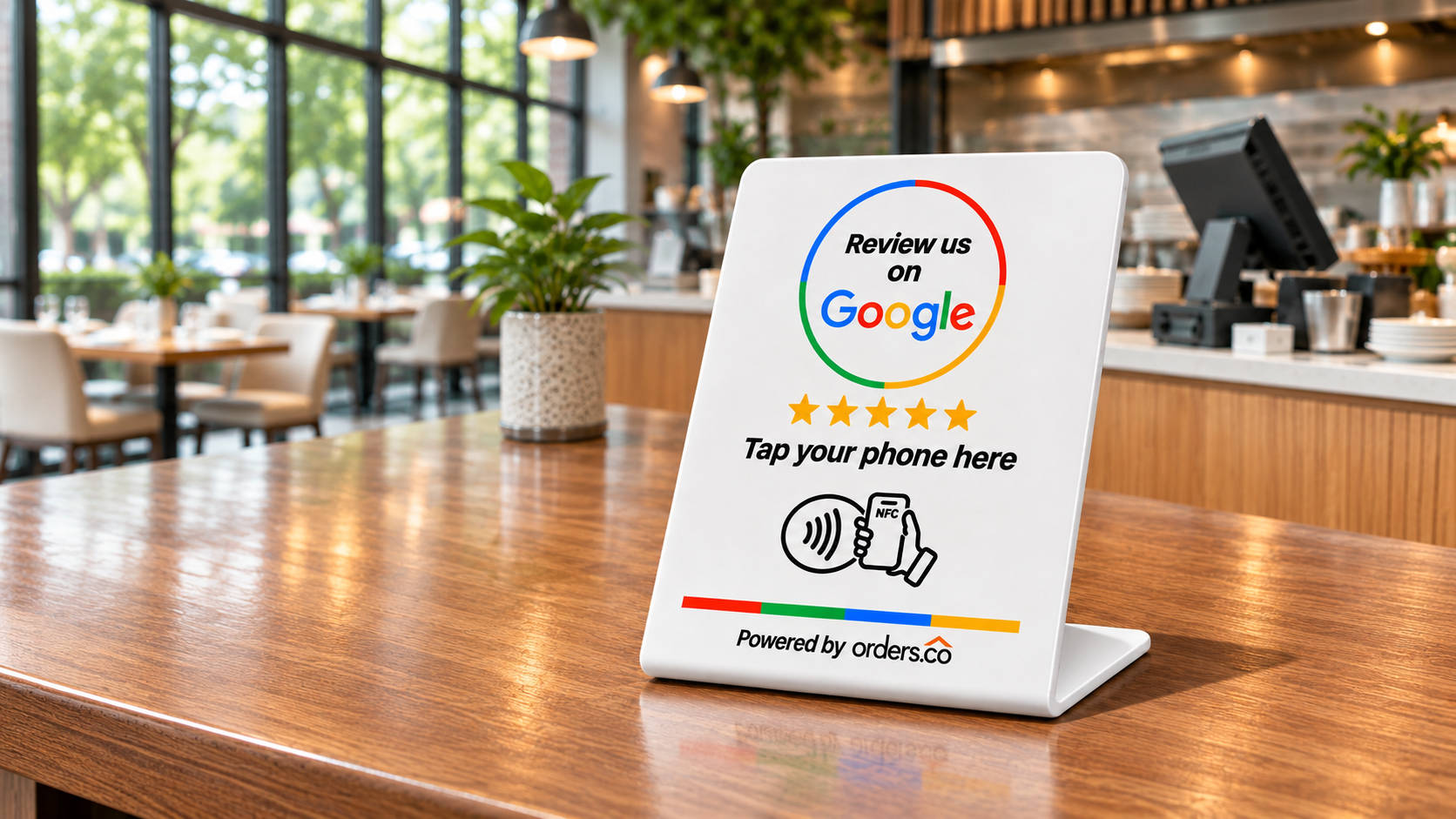
The Orders.co Review Tracker shows you how many guests scan your Review Tracker stand, which new Google reviews are coming in, and how your restaurant compares with nearby competitors. Setup takes four steps: create an account, add your business, connect your stand, and explore your dashboard. Our video walks through the whole process in about a minute. Before you start, download the free app and keep your stand within reach.
Prefer to follow along? Watch our quick video walkthrough, or use the steps below to get started.
How to Set Up Your Orders.co Review Tracker
Step 1. Create Your Account
Open the Orders.co Review Tracker app and tap “Create Account.” Enter your name, email address, and password. Adding a phone number is optional. Tap “Create Account” again to continue.
Step 2. Find and Add Your Restaurant
Search for your restaurant on Google by entering its name and city, then select the correct Google business listing.
Take a moment with this choice. The listing you select is the business your reviews and competitor comparisons are based on. If several results look alike, make sure you pick your own location.
Step 3. Connect Your Review Tracker Stand
This is the one hands-on step, so have your stand in front of you.
- Tap “Scan Unit.”
- Hold the top of your smartphone directly against the Review Tracker stand.
Once the stand is connected, the app takes it from there. It automatically saves your business, retrieves your reviews, and identifies nearby competitors.
How to Use Your Orders.co Review Tracker Dashboard
With your stand connected, three screens cover your day-to-day restaurant review tracking: the dashboard, Reviews, and Competitors.
Monitor Stand Scans and New Reviews
Your main dashboard shows how many people have scanned your stand, your new reviews, and how your business compares with nearby competitors.
Scans tell you whether guests are noticing and using the stand. If the count stays low, try a more visible spot, such as your counter or pickup area. New reviews keep recent customer feedback in front of you, so it does not slip by unnoticed.
Watch the dashboard tour at 0:36
See Your Latest Google Reviews
Open the app menu and tap “Reviews” to see your most recent Google reviews.
If you have been wondering how to monitor Google reviews without checking your listing every day, this is the screen to use. Read it regularly to spot compliments worth sharing with your team, complaints worth following up on, and comments that keep coming up about a dish, wait times, or service.
Watch the Reviews screen at 0:45
See How Your Restaurant Compares to Competitors
Tap “Competitors” to see how your restaurant ranks against nearby businesses. You can add or remove competitors whenever you need to.
Keep the list focused on the places your guests actually choose between, like the other pizzeria down the street, rather than every restaurant in town. A tighter list makes the comparison more useful and shows you where your reputation stands out and where it needs attention.
Watch competitor tracking at 0:49
Start Keeping Track of Your Restaurant’s Reputation
That completes your Orders.co Review Tracker setup. Your stand is connected and ready to use. From here, the app keeps track of activity, your latest Google reviews, and local competitor comparisons in one place. That gives you a clearer view of what guests are saying and where your restaurant stands nearby.
If your stand is still in the box, now is a good time to set it up. Need a refresher later? You can rewatch our setup video anytime.

