


- At a Glance
- What Is a KDS in a Restaurant?
- What Does a KDS Actually Do During Restaurant Service?
- How Does a Kitchen Display System Work?
- What Are the Advantages of a Kitchen Display System?
- What Are the Different Types of KDS Systems?
- How Does a KDS Connect to Your POS and Ordering Channels?
- KDS vs. POS vs. Kitchen Printer: What’s the Difference?
- How a KDS Fits Into a Connected Restaurant Workflow
- The Bottom Line
- Frequently Asked Questions
- More Helpful Reads
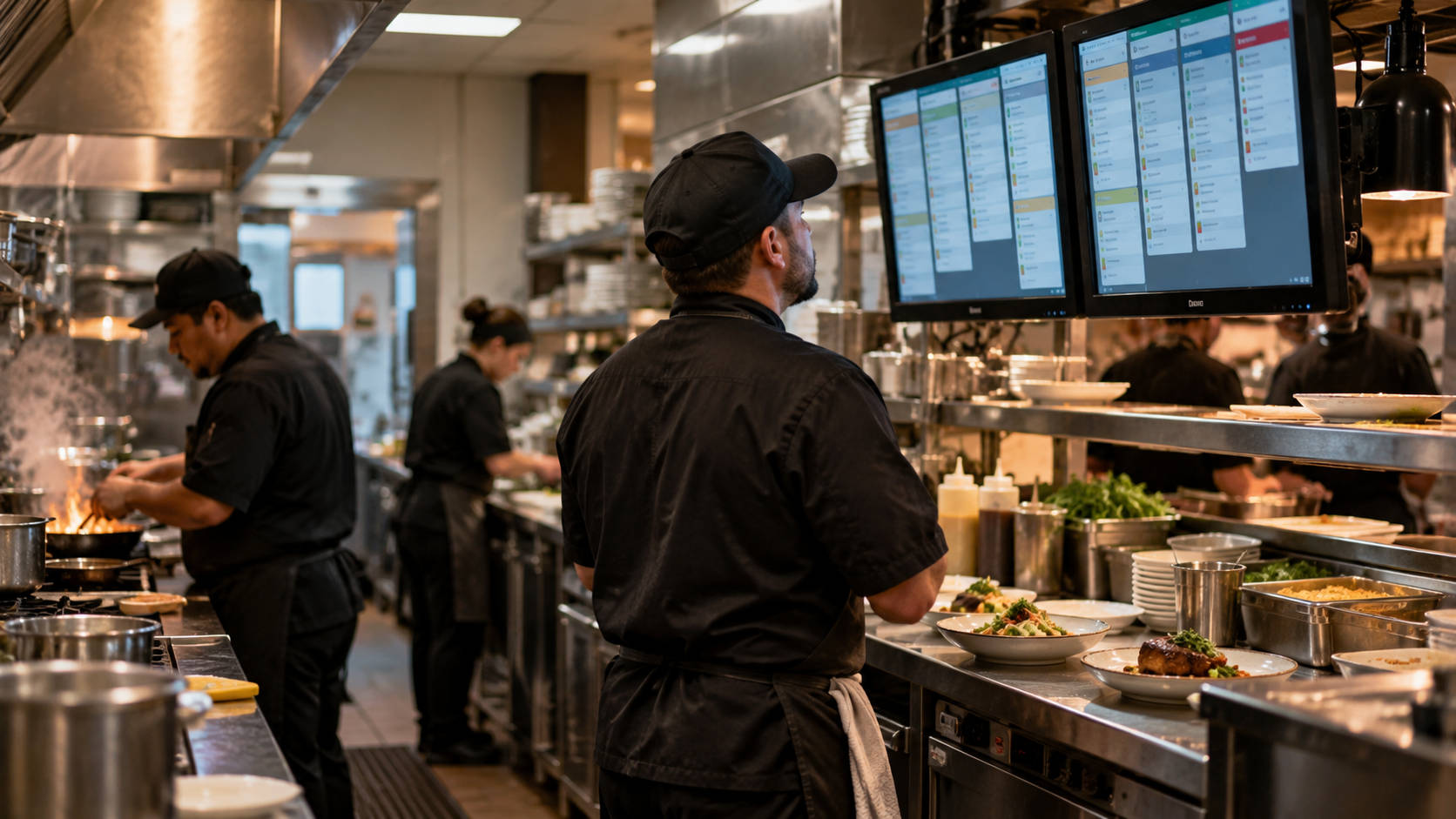
A KDS, or Kitchen Display System, is a digital system that shows restaurant orders on screens in the kitchen instead of relying only on printed paper tickets. Orders arrive from the POS, a server handheld, a self-service kiosk, an online ordering site, or a delivery channel, then appear on the screen so kitchen staff can see every ticket, track its status, and mark it complete.
Most operators hit the term for the same reason: orders no longer come from one place. A single dinner shift can pull tickets from servers, the phone, your website, a kiosk, and two or three delivery marketplaces. Paper tickets still work in plenty of restaurants, but they were built for a simpler mix.
This guide covers what appears on the screen, how an order reaches a prep station, the advantages and trade-offs, the types of systems, how a KDS connects to your ordering channels, and how it differs from a POS and a printer.
At a Glance
| KDS stands for | Kitchen Display System |
| Used for | Displaying and managing restaurant kitchen orders digitally |
| Usually connects to | POS, online ordering, kiosks, and other order sources |
| Replaces or supplements | Paper kitchen tickets and kitchen printers |
| Used by | Kitchen and expo staff |
What Is a KDS in a Restaurant?
KDS stands for Kitchen Display System. In a restaurant, it is the screen in the kitchen, plus the software behind it, that shows staff what to make, in what order, and with which modifications.
Think of a KDS as software first and hardware second. The screen is what people notice, but the value comes from where the order data originates and how it is organized. Orders can start at a cashier POS, a server handheld, a kiosk, your online ordering site, or a connected delivery channel. It is not all or nothing: some restaurants retire their printers entirely, others keep one as a backup.
A typical digital ticket on a KDS shows:
- Menu items and quantities
- Modifiers, such as no onions or dressing on the side
- Special instructions typed by a guest or a server
- Table number, order number, or guest name
- Order type: dine-in, pickup, takeout, or delivery
- A timer showing how long the ticket has been open
- Current preparation status, such as new, in progress, or ready
So what is a KDS used for? It gives the back of house one accurate view of every order in progress, and gives managers a record of how long that work took.
What Does a KDS Actually Do During Restaurant Service?
During service, a KDS receives incoming orders, organizes them into a working queue, sends items to the right prep stations, and tracks each ticket until it is finished. Depending on the system, that can include:
- Displaying new orders the moment they are received
- Sorting the queue by time received, order type, or promise time
- Prioritizing tickets running long or due soon
- Routing items to the correct station, so grill items go to the grill and cold goes to the cold
- Showing modifiers and special instructions readably
- Tracking ticket age with timers and color changes
- Moving orders through statuses and bumping completed tickets off the screen
- Recalling a bumped ticket for a remake or a returning guest
- Feeding ticket time data into reporting
Not every KDS does all of this. Many modern KDS platforms include station routing and timers. Recall, all-day views, and kitchen reporting vary by provider, so confirm each during a demo.
How Does a Kitchen Display System Work?
A KDS works by receiving order data from whatever system created the order, then tracking it until the kitchen finishes. The sequence usually looks like this:
- A customer orders in person, by phone, on your website, at a kiosk, or through a delivery app.
- The POS or ordering system records the items, modifiers, and order type.
- The order data is transmitted to the KDS over the local network or the internet.
- Items are routed to the appropriate station based on rules you set.
- Kitchen staff prepare the items and update the ticket as work progresses.
- Staff bump or complete the ticket when the food is ready.
- Connected systems may receive the new status, driving pickup notifications or delivery handoff.
- Ticket time data may be stored for reporting, where supported.
A plain example: a guest orders a cheeseburger with no onions and extra pickles, plus a side of fries. On a KDS with station routing, the burger line sees the burger with both modifiers under the item, and the fry station sees the fries. Both see the same ticket number and timer, so the fries are not sitting under a heat lamp while the burger finishes.
What Are the Advantages of a Kitchen Display System?
The main advantage of a KDS is that order information stays intact and visible from the moment it is entered to the moment the food goes out.
Clearer Communication Between Front and Back of House
Nobody interprets handwriting or a faded thermal ticket. Modifiers and special instructions stay attached to the item they belong to, and less gets relayed verbally across a hot line, so fewer details disappear during a handoff. This does not eliminate mistakes. It removes one common source of them.
Better Order Accuracy
Accuracy improves by removing steps. When an order reaches the kitchen without anyone retyping it, there is no copy to get wrong. A KDS can reduce errors and remakes, but the result depends on your setup and your team, not the hardware alone.
Faster, More Organized Kitchen Workflow
Ticket timers show which orders are aging, and sequencing keeps the queue in order rather than however the paper landed. Station routing means cooks look at their own work instead of scanning a rail, and the expo sees what is still coming. Treat any specific speed claim with suspicion unless the source is verifiable.
Better Dine-In Service
The chain is indirect but real. Cleaner kitchen communication supports coordinated prep, fewer avoidable delays and remakes, and courses that land closer to when guests expect them. A KDS does not create hospitality. It removes friction that gets in its way.
Better Pickup and Carryout Coordination
Some connected setups update order status when the kitchen marks a ticket ready, which can trigger a customer notification or tell a driver the bag is available. This is not a property of every KDS. It requires the KDS to be connected to the software that talks to the customer.
A Display That Can Match the Kitchen Workflow
Configurability separates systems more than most buyers expect. Depending on the provider, you may be able to adjust ticket layout and font size for how far cooks stand from the screen, set color and timer alerts, route items by station, split dine-in from delivery on screen, turn on an all day view for prep counts, and choose touchscreen or bump bar control.
Less Dependence on Paper Tickets
Fewer tickets get lost, smudged by steam, or knocked to the floor. You buy less thermal paper and clear fewer jams.
The trade-off is worth stating plainly. A digital system depends on working hardware, a network, and power. A printer on a dedicated line can keep producing tickets when a cloud-connected screen cannot. Decide in advance what your kitchen does during an outage, and consider a backup printer.
What Are the Different Types of KDS Systems?
KDS systems fall into three categories: bundled with a POS, built on dedicated kitchen hardware, or sold as software that runs on displays you supply.
POS-Bundled or Native KDS
A KDS supplied by your POS provider as part of its own product family.
The appeal is simplicity: order data does not cross a vendor boundary, setup is faster, and one company answers the phone when something breaks. The limits show up later, in required hardware, a feature set you cannot extend, and little value if you change POS providers.
Hardware-Based KDS
Dedicated commercial kitchen displays are often paired with a controller and a bump bar.
Restaurants choose these for the environment. Commercial displays handle heat, grease, and moisture, stay readable across a line, and are built for years of service. The cost is higher upfront, and you are committing to specific hardware.
App-Based or Integrative KDS
KDS software that runs on compatible tablets, iPads, Android devices, or web connected displays.
The advantages are flexibility and a lower hardware barrier, which makes adding a screen at a new station or location cheaper. The drawbacks are durability, network dependence, compatibility limits with your POS, and the chance you need an extra integration to get every order source onto the screen. A tablet is not better. It is cheaper to start.
How Does a KDS Connect to Your POS and Ordering Channels?
A KDS connects to your POS and ordering channels through integrations, and those integrations matter more than the screen itself.
The display is the last visible step. Before anything appears in the kitchen, accurate order data has to arrive from somewhere, and that path is where most real problems live.
Direct POS Integration
An order is entered into the POS, the POS sends it to the KDS, the kitchen sees it. Most POS-bundled systems work this way, covering dine-in and phone orders entered by staff.
Online Ordering and Delivery Integration
Orders from your website, kiosks, and third party marketplaces travel a longer path. They may enter through the POS, an order management system, or an order consolidation platform, and only then move into the KDS.
This is where a kitchen screen can look good and still sit on a bad workflow. If staff read a DoorDash tablet and retype the order into another system, you have digitized the display but not the work. Marketplaces are a real discovery channel. The question is not whether to use them, but whether their orders reach your kitchen without a person as the bridge.
API, Custom, and Manual Integrations
More flexible systems connect through APIs, webhooks, or middleware, which is how less common order sources get attached. You do not need the plumbing. You need one answer: can every order source I use reach this screen reliably, without someone retyping it?
The Four-Step KDS Order Path Test
Take one real order from each channel you use, dine-in, phone, website, kiosk, and each delivery app, and walk it through four questions:
- Where is the order created?
- Does anyone re-enter it manually at any point?
- Does it reach the correct kitchen station automatically?
- Can staff clearly see when it is started and when it is completed?
Run this during a demo and make the vendor show you, channel by channel. If an employee still moves an order between systems by hand, you have digitized the screen but not the workflow, and the mistakes from manual entry will still be there.
KDS vs. POS vs. Kitchen Printer: What’s the Difference?
The POS creates and manages the transaction, the KDS manages the kitchen-facing preparation workflow, and the kitchen printer produces a physical ticket.
| Technology | Primary Job | Who Uses It | Where It Is Used | Handles Payments? | Shows Kitchen Orders? | Tracks Prep Status? | Uses Paper? |
| POS | Enter orders, process payment, record sales | Servers, cashiers, managers | Front of house, counter, handheld | Yes | Sends them, does not manage them | Limited | No |
| KDS | Display, organize, and track kitchen orders | Cooks, expo, kitchen managers | Back of house | No | Yes | Yes | No |
| Kitchen printer | Print a physical copy of the order | Cooks, expo | Back of house, station rails | No | Prints them | No | Yes |
These are not mutually exclusive. A restaurant might run a POS plus a printer, a POS plus a KDS, or a POS plus a KDS with a backup printer. A small cafe with one cook and forty tickets a day may get nothing from screens that a printer was not already handling. A kitchen with four stations, three delivery channels, and a Friday rush is a different situation.
How a KDS Fits Into a Connected Restaurant Workflow
A KDS gets more useful as more of your ordering channels feed into one connected system. The screen is worth the most when nothing upstream of it requires manual handling.
That is the part Orders.co is built around. Orders from DoorDash, Uber Eats, Grubhub, ezCater, and your own direct online ordering site come into one system rather than a row of separate tablets, and kiosk and counter orders land in the same queue. Orders.co can run alongside your existing restaurant POS system or replace it, and tickets can be routed to the right prep area. Menu changes, including sold-out items, sync across channels from one place, and prep time and busy mode controls let you slow incoming volume when the kitchen needs to catch up. Sales, hourly, and revenue-by-platform reporting sit in the same dashboard.
The path: a customer orders, the order enters the connected system, it moves into the kitchen workflow, staff prepare it, the completed order continues to pickup or delivery, and the data feeds reporting.
The Bottom Line
A KDS, or Kitchen Display System, replaces or supplements paper kitchen tickets. It receives orders from your POS and other ordering channels, organizes preparation across stations, and tracks each ticket until it goes out the door.
How much it helps depends far more on integrations and kitchen workflow than on the screen you buy. A KDS wired into every channel you sell through will change how a busy kitchen runs. One that still needs someone retyping delivery orders will not.
Map your order sources and prep stations, then walk one real order from each channel through the four-step test during a demo. If every channel reaches the right station without a person in the middle, you have the right system. If your kitchen is small and your printer keeps up, that is a legitimate answer too.
Frequently Asked Questions
KDS cost depends on how the system is sold and how many screens you need. One screen on a tablet you already own sits at the low end. A multi-station kitchen with commercial displays, bump bars, and an expo screen sits at the high end. Ask for a written quote that separates software, hardware, integration, and support. The price of the screen is rarely the full cost.
Sometimes. Some KDS apps run on standard iPads, Android tablets, or web connected displays. Other systems require proprietary or restaurant grade hardware and will not support a consumer device.
A bump bar is a physical keypad mounted near a kitchen display that lets staff control the screen without touching it. The most common action is bumping a finished ticket off the queue, which is where the name comes from, but bump bars also scroll through tickets, recall an order, and move between views.
Some can, but most restaurant KDS setups are built around a POS. A KDS is only as useful as the order data reaching it, and in most restaurants the POS is where orders are created. Some KDS platforms accept orders from a direct online ordering site, a QR code system, a kiosk, or an API feed, and a ghost kitchen with no counter service might run that way. If you take dine-in or phone orders, you still need something to enter them into.


